
Key takeaways:
- A great training video focuses on a single task, shows the actual process in action instead of just describing it, and is brief enough to watch in one sitting.
- Most retakes and unnecessary rambling can be traced back to not having a written outline before recording.
- The biggest long-term risk is creating a training video that becomes outdated when the process changes. Choose tools that let you update individual steps instead of recreating the entire video.
Until recently, creating a training video was a serious undertaking. Script writing, recording, editing, and adding voiceover were largely manual tasks that required time, editing skills, or professional help. Newer training video tools automate much of that work, from generating narration and captions to turning software workflows into structured training content. This is especially helpful for training videos about updates, which were once a nightmare since you had to re-record nearly everything from scratch.
In this guide, we’ll show you how to create a training video that’s a breeze to update. We’ll explore what makes these videos effective, the steps to create them, and the software you’ll need, plus we'll share a few sample formats to model your own on.
What makes a training video effective?
When it comes to evaluating a training video, there's a simple test: would it still make sense to someone who's watching it on their phone, with the sound off, and only half paying attention? Whether it passes this test depends on three key considerations:
- The video should focus on a single task instead of trying to cover an entire system. This way viewers don’t have to search along the progress bar to find the two minutes that are relevant to them.
- It should visually demonstrate the process in action. After all, the whole point of making a video is to show the process, not describe it.
- It should wrap up before viewers lose interest and decide to ask a colleague for help. In most cases, this means in under five minutes.
If any of these elements are missing, chances are the video will be abandoned midway through or half-watched once and then never revisited.
How to make a training video step by step
Step 1 – Define the task and audience
Begin by clearly defining what the training video will teach. For instance, “How to set up a new client account” is a focused topic that can easily be developed into a video. In contrast, something like “how our onboarding process works” is too broad, as it probably involves multiple steps.
Then consider who will be watching and what they already know. A new hire will need more detailed explanations than a seasoned employee who’s just learning a new feature.
Step 2 – Script or outline the key steps
While you don’t need to memorize the script word for word, having a clear sequence of steps written down before you hit “record” is essential. Going through a process live without an outline often leads to lots of umming and ahing that you’ll have to edit out later. Worse still, you might find yourself presenting the workflow in the wrong order and having to redo the take completely.
A simple list of each action, along with a quick note on why it’s important, can prevent both problems and save you extra work later.
Step 3 – Capture the workflow
With the outline in hand, capture the workflow exactly as a viewer would experience it. If you’re using a traditional screen recorder, pacing matters: move naturally, but slowly enough that viewers can follow each click or input. The same applies when filming a physical process: keep the camera focused on the action unless the person performing it is genuinely relevant.
With a workflow capture tool like Guideless, pacing matters less because each interaction is captured as an individual step that can be edited afterward.
See how a software workflow becomes a training guide with Guideless:
Step 4 – Add narration or voiceover
You have the option to record your voice live as you navigate through the content. This can be a quick approach and adds some authenticity. However, unless you are experienced at presenting, there may be filler words, hesitation, or mistakes. These can cost you time in reediting or reshooting.
Alternatively, you can capture the workflow first and add your voice later, following your outline to make sure the narration matches the visuals. You can record your own voice or use AI tools to generate the voiceover for you.
Whichever method you choose, make sure the voiceover adds context rather than simply describing what’s happening. For instance, saying “Click Approve” tells viewers what action to take, while “Click Approve once the amount matches the invoice” provides actual guidance.
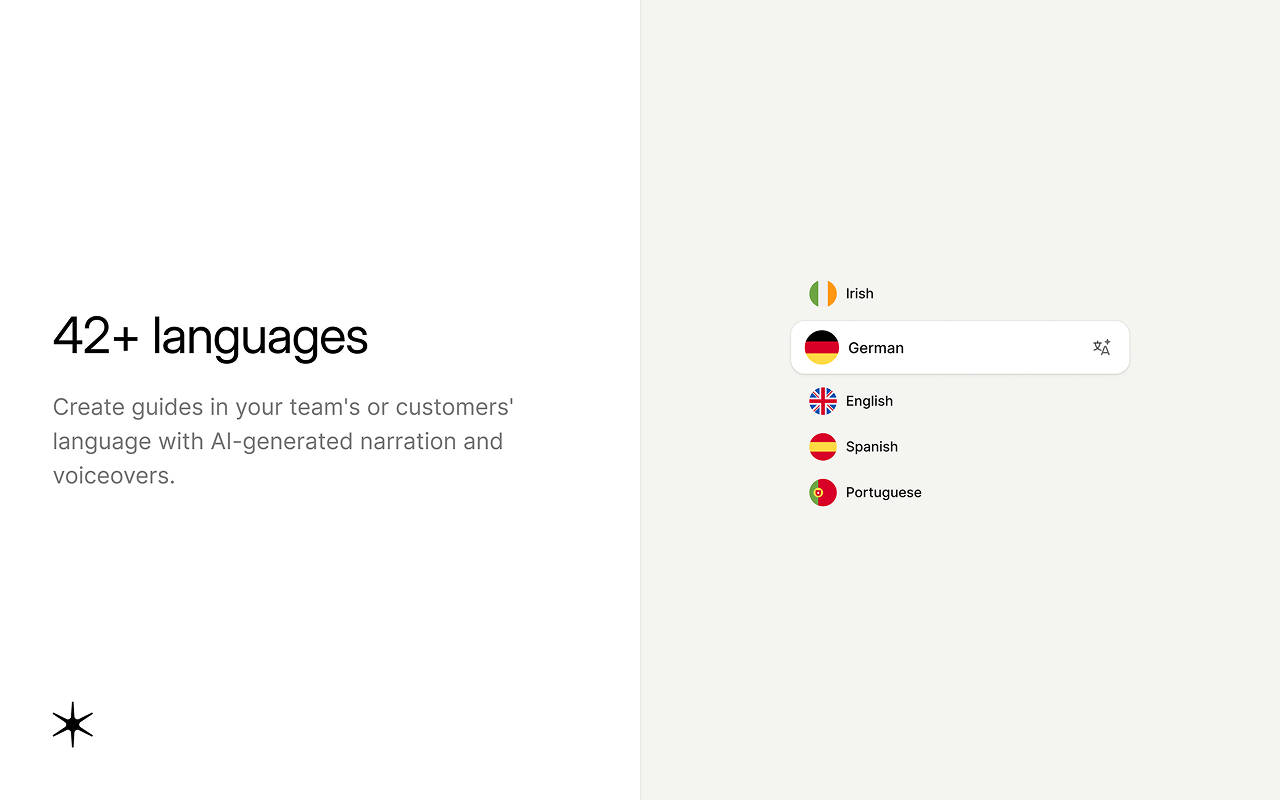
For global teams, AI voiceover can also remove the need to re-record the same training in different languages. Guideless supports AI-generated narration in 42+ languages.
Step 5 – Edit, trim, and add captions
Start by trimming out any dead air, false starts, and awkward pauses. It’s also important to add captions. Plenty of viewers watch with the sound off. Plus, captions make the video accessible to anyone who’s deaf or hard of hearing. If possible, zoom in on details a viewer might miss, and highlight the cursor at key moments. Finally, keep the editing to a minimum - you don't need extra transitions, and these can make your video harder to change or reedit if the workflow changes.
Step 6 – Publish and keep it updated
Share the video in all the places your audience is likely to find it. These could include internal wikis, a learning management system, or even directly within the tool it’s meant to explain. With Guideless, finished guides can be shared by link, embedded in a website or knowledge base, or exported as MP4 or PDF, making it easy to reuse the same training across different channels.
It's important to think of the publish date as the beginning of your video's life, not the end. Designate someone to take ownership of it, and make sure it is reviewed as soon as there’s a change to the process the video covers. Don’t wait for a new team member to realize that the visuals no longer match the current workflow.
Training video software and tools
Screen recording software
For training videos about digital tools and products, screen recording is one common way to capture the process. Loom is built for quick, shareable recordings and handles capture and instant sharing well. Camtasia and ScreenPal combine recording with built-in editing, while OBS Studio is free and highly configurable, though it requires more setup than the paid alternatives.
With traditional screen recording tools, you’ll typically end up with a video of the workflow and whatever voiceover you record alongside it. The final quality will depend partly on your audio setup and presentation skills, while any mistakes or process changes may require additional editing or re-recording.
Training and video editing software
Once you have raw footage, dedicated editing tools can add some polish: trimming, voiceover, captions, and branding. Camtasia doubles as an editor as well as a recorder, with callouts, cursor effects, and quiz features aimed squarely at training content. Descript lets you edit video by changing the text transcript, which makes cutting filler words far faster than scrubbing through a timeline by hand. For more general-purpose editing power, Adobe Premiere Rush offers finer control at the cost of a steeper learning curve.
AI-powered training video software
The tools above still leave you doing all of the editing and re-recording work yourself. And this can become very time consuming when the relevant process shifts, which is exactly the bottleneck a newer category of tool exists to remove - AI-powered video creation tools. There's Synthesia, which generates fully voiced videos using AI avatars - this tool requires a script, so is best suited to content with no live screen capture.
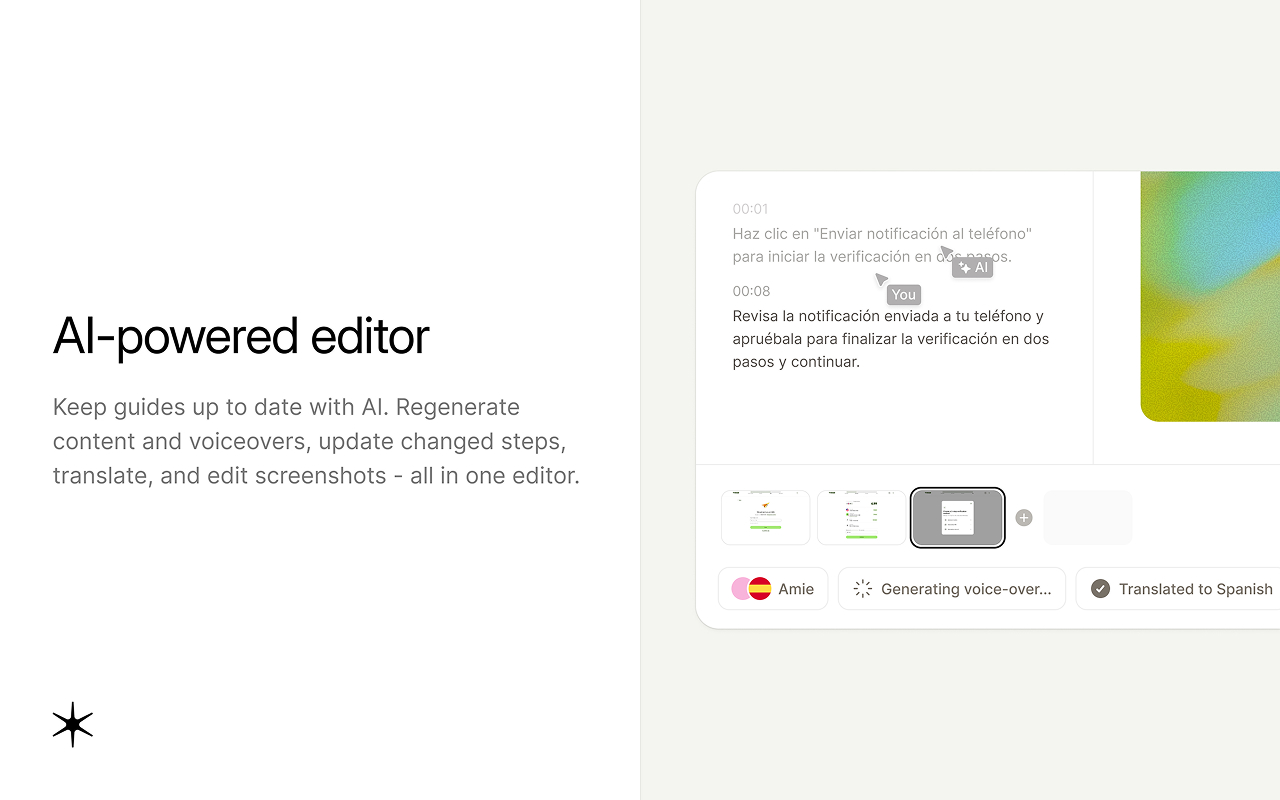
For workflow-based training specifically, Guideless captures a software workflow directly in the browser and turns it into a narrated training video and step-by-step guide, with AI-generated narration, captions, and branding. Because each guide is built from individually editable steps, when a workflow changes you can update the affected step instead of recreating the entire video.
Training video examples
Three formats - software walkthroughs, onboarding tutorials, and process explainers - cover most employee training video needs. Below we've included some best practice examples for each of these video types.
Software walkthrough example
A software walkthrough works best when it focuses on one task and shows the exact actions a viewer needs to take. This tutorial by David Alex on creating guides with AI includes a useful example around the 10-minute mark. It walks viewers through different YouTube analytics functions using a large, easy-to-follow cursor, clickable chapters for individual steps, and AI-generated voiceover with clear instructions. Together, these elements make the workflow easy to follow and let viewers quickly return to the step they need.
Employee onboarding example
Employee onboarding videos work best when they focus on one task a new hire actually needs to complete. For example, Guideless can be used for employee onboarding to turn everyday software workflows into training videos and step-by-step guides. A guide showing how to set working hours in Slack walks new employees through the real workflow they’ll use, without trying to cover the entire onboarding process at once.
Process explainer example
A process explainer can walk viewers through a complete workflow from start to finish, showing each action in context rather than describing the process in the abstract. For example, Trendo’s “How to: Start with Trendos – your AI Search visibility tool” guides users through getting started with the platform using the actual product interface. Created with Guideless, the video combines the real workflow with narration and captions, making each step easy to follow as viewers complete the process themselves.
Common mistakes when making a training video
Trying to cover too many steps in one video usually comes from wanting to be thorough. The result is a video so long that viewers skip through looking for the one part they need, which defeats the point of recording it.
Not having a clear audience in mind is a close second. A video with no context may be confusing to some viewers, or feel like a waste of time to others. Decide who you’re teaching before you decide what to say.
Skipping the outline and narrating from memory tends to produce rambling videos full of asides and corrections. A short list of steps only takes a few minutes and saves several retakes.
The biggest mistake is to let your training video get out of date. Nothing makes a worse first impression to a new hire than sharing a video featuring workflows and processes that don't match the current reality. And it is likely to confuse the matter rather than clarify, defeating the point of having a training video in the first place. To avoid this mistake, assign an owner and update it the moment the process changes, rather than on a fixed schedule.