
Most teams don't fail at process documentation because nobody writes anything down. They fail because someone writes it down once, the workflow changes three weeks later, and the document quietly goes stale. Six months on, the doc still exists, but nobody trusts it, so people ask a teammate instead.
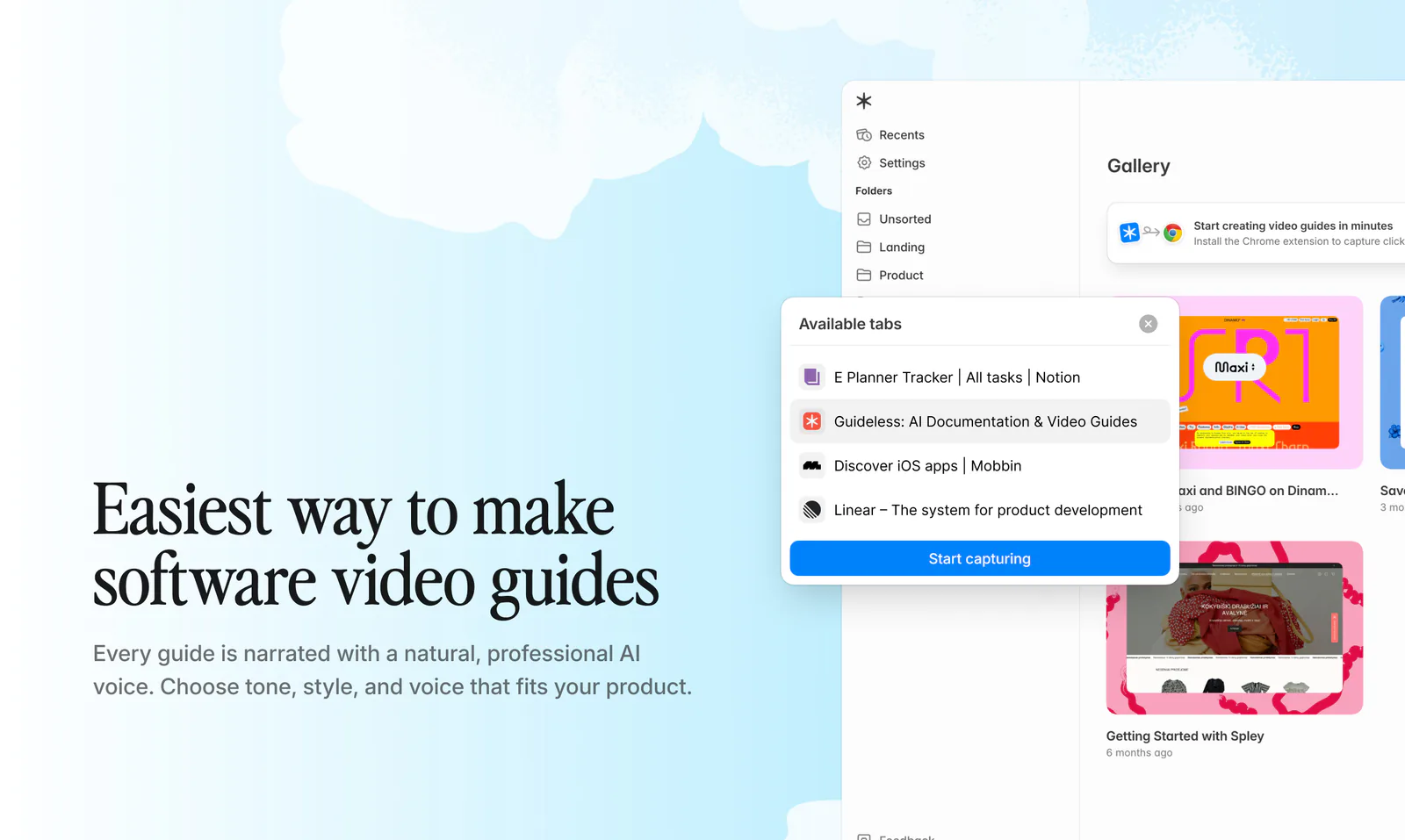
This guide walks through a repeatable way to document any process, whether it's a technical workflow, a customer-facing procedure, or an internal task your team repeats every week. If you specifically need a formal, audit-ready SOP, our guide to creating an SOP covers that structure in more depth. This one is the general framework that applies before you get there.
What is process documentation?
Process documentation is a written (or visual) record that explains how a task or workflow gets done, step by step, so anyone with the right context can complete it consistently.
It comes in two broad flavors:
- Internal process documentation — onboarding steps, internal tool workflows, product development handoffs, marketing checklists
- External process documentation — customer support articles, integration guides, anything a customer or partner reads to complete a task themselves
Both matter for the same reason: a process that lives only in one person's head is a process that breaks the moment that person is unavailable.
Why documenting a process matters
A few concrete reasons this pays off:
- Fewer repeated questions. If the steps are written down and easy to find, people stop pinging the same teammate every time they hit the same task.
- Knowledge doesn't walk out the door. When someone leaves or goes on leave, the process doesn't leave with them.
- Writing it down exposes the gaps. Processes that only exist as habit often have unnecessary steps or missing ones. You don't notice until you try to explain it in order.
- Consistency, regardless of who's doing the task. New hires and five-year veterans end up doing it the same way.
How to document a process: 7 steps
1. Define the goal and scope
Before you write a single step, decide exactly what this document covers and where it starts and ends. "How we onboard a new customer" is too broad. "How to set up a new customer's account in the billing system" is a document you can actually finish.
Decide the level of detail up front too. A process for an experienced ops team can skip explanations a brand-new hire would need.
2. Identify who it's for
The same process reads differently depending on the audience. A doc for a new hire needs more context and fewer assumptions. A doc for an experienced teammate can be terser and skip the "why."
Note who needs to review or sign off on the draft before it's considered final. If more than one person touches this process regularly, get them involved early rather than writing in isolation and asking for feedback after the fact.
3. Do the process yourself, or shadow someone who does
Don't document from memory. Walk through the actual process live, ideally as a first-time user would, and write down what you see, not what you assume happens.
This is an easy place for process docs to go wrong. The person writing them knows the process so well that "obvious" steps get skipped, and those are exactly the steps a new person gets stuck on.
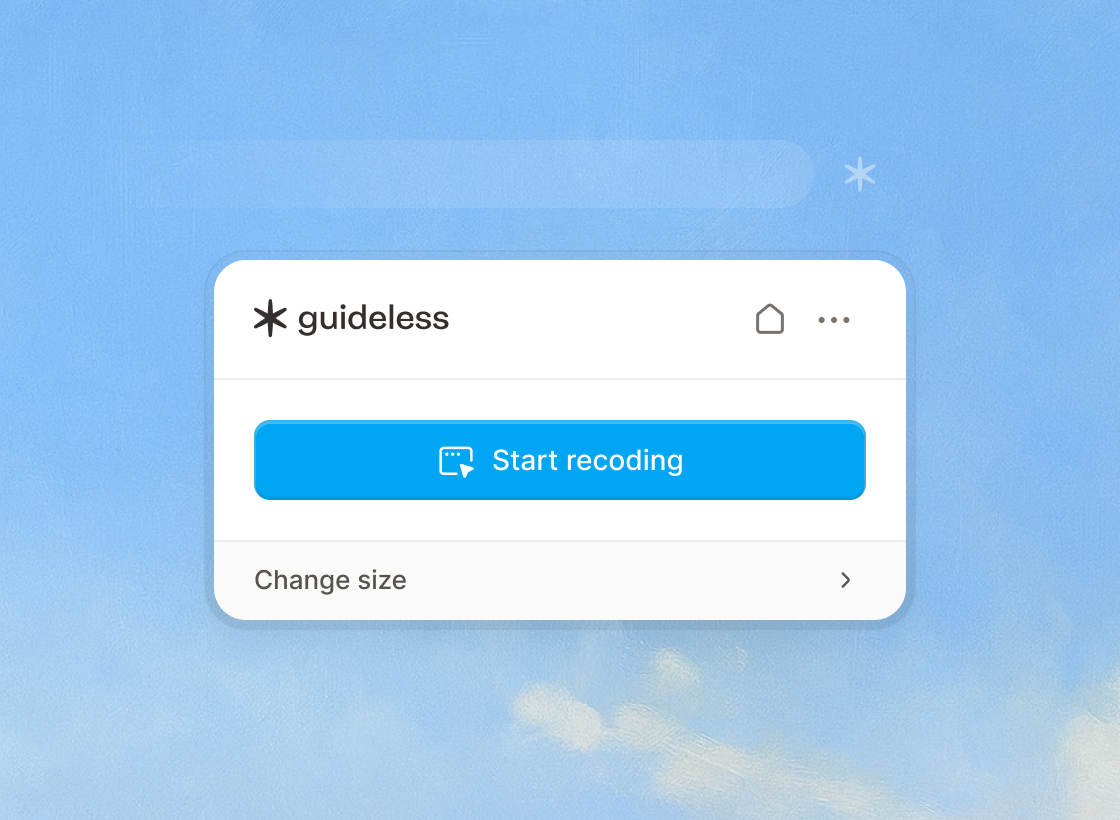
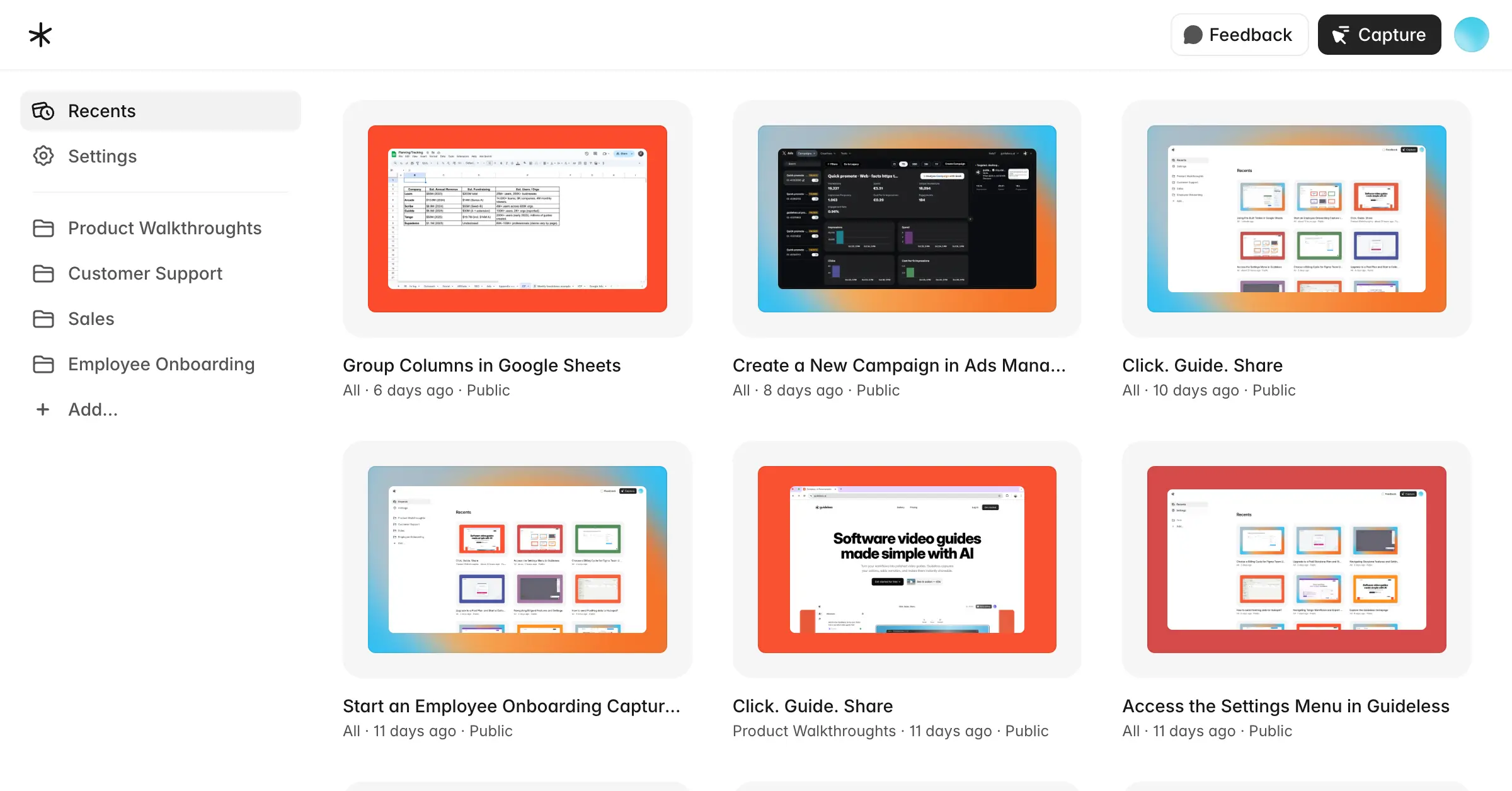
For software workflows, tools like Guideless can capture the process as you perform it, including clicks, inputs, and navigation, so you don't have to reconstruct the steps from memory afterward. If you're still choosing a tool, compare process documentation software side by side
4. Draft the steps in order
Write one action per step. Use numbered lists when order matters, and start each step with a clear action verb: click, select, enter, navigate.
A few habits that make instructions easier to follow:
- Avoid vague pronouns like "it" or "that" when more than one thing could be the antecedent — say exactly what you mean
- Spell out acronyms the first time they appear
- Keep sentences short enough to read in one breath
5. Add visuals where text alone falls short
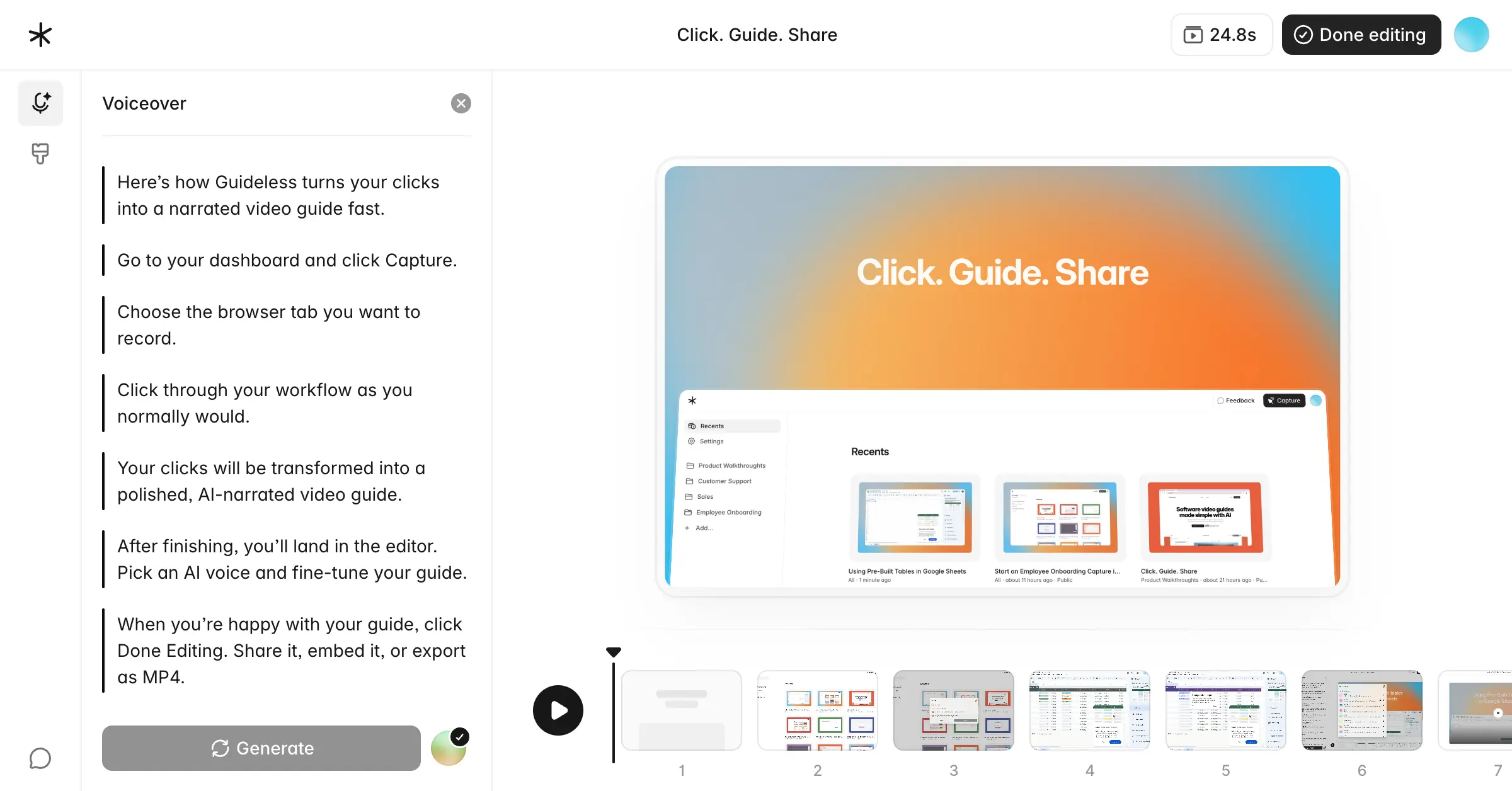
Visuals should support a process that's already clear, not compensate for one that isn't. That said, for anything with branching decisions, multiple screens, or a sequence that's hard to describe in words, a screenshot, short clip, or flow diagram saves the reader real time.
Use screenshots for specific UI actions, short videos for multi-step software workflows, and flowcharts when the process branches based on a decision.
If you're working from existing screenshots and want to turn them into something more polished and shareable, our guide on turning screenshots into a polished guide covers that specifically.
6. Get feedback and test it
Hand the draft to someone who's never done the process before and ask them to follow it exactly as written, without filling in gaps from their own experience. Wherever they hesitate or get stuck is exactly where the document needs to be clearer, not where the reader needs to be smarter.
For anything more complex, run more than one round of feedback: one pass for technical accuracy from someone who knows the process, and one pass for clarity from someone who doesn't.
7. Publish, share, and set a review date
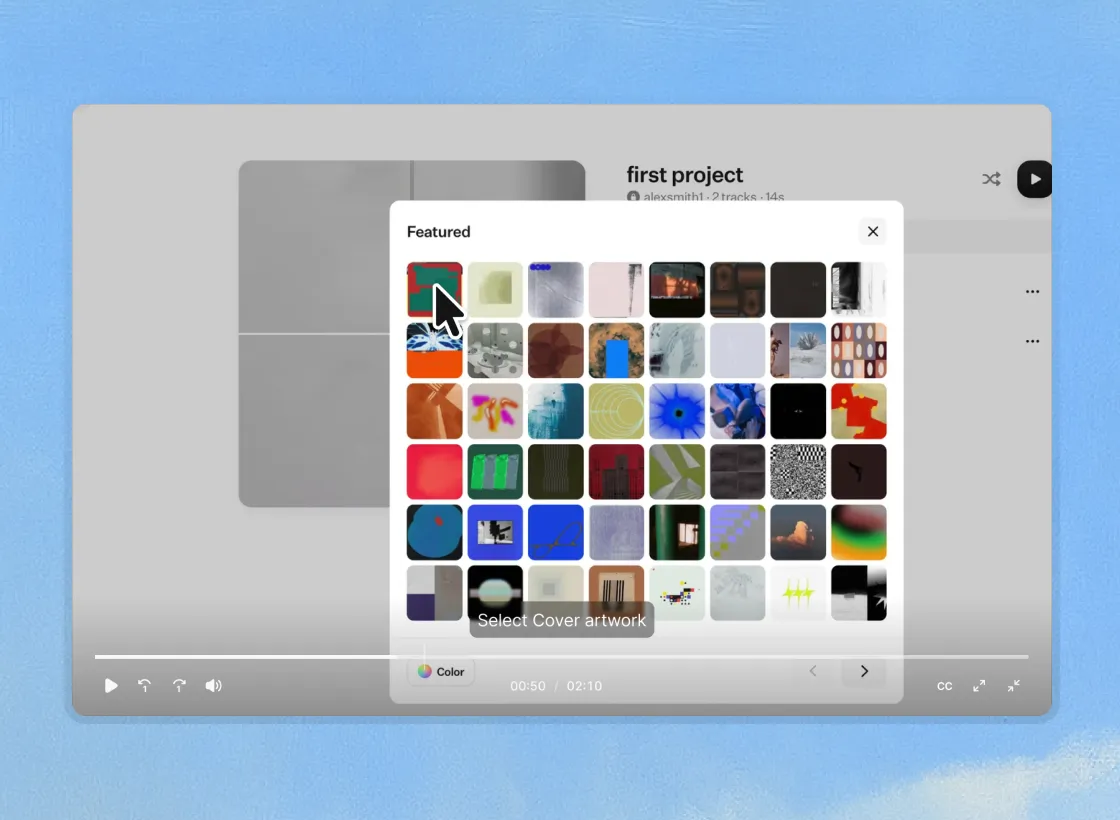
A process doc that lives in a random chat thread or someone's personal notes might as well not exist. Store it somewhere findable, assign an owner, and set a recurring review date so it gets checked whenever the underlying process changes, not just when someone happens to notice it's wrong.
Process document template
Here's a bare-bones structure you can adapt for almost any process, even one you plan to keep short:
Title: [Name of the process]
Purpose: [Why this process exists / what it accomplishes]
Scope: [What this covers, and what it explicitly doesn't]
Steps:
1. ...
2. ...
3. ...
Owner: [Who's responsible for keeping this current]
Last updated: [Date]
This scales down naturally from a full SOP. If you need something more formal, with defined roles, compliance language, and version history, that's what a proper SOP format is for. Our SOP creation guide walks through that structure and includes a longer template.
Using AI to speed up process documentation
A major reason processes stay undocumented, or go stale once they are documented, is that writing (and rewriting) them by hand is slow. Every UI change means someone has to go back, retake screenshots, and edit the text to match.
AI-based process documentation software changes this by capturing the workflow directly instead of asking someone to write it up afterward. Guideless, for example, records a process as you actually perform it, including clicks, inputs, and navigation. It then turns that recording into a structured, narrated visual guide automatically. That means the documentation reflects what actually happens on screen, and when the workflow changes, you recapture the relevant part instead of rewriting the whole document from scratch. It's worth trying if steps 3 through 5 above are the part of this process that keeps stalling for your team.