
Key takeaways
- Using a shared template can ensure every how-to guide your team writes follows a consistent structure: goal, audience, prerequisites, numbered steps and an expected result.
- When choosing a template, think of the task at hand. For a single task with a clear end point, use the basic or step-by-step template. For a task people repeat often, choose a quick reference guide. And if the task involves more than one person, use a process guide so everyone knows what to do.
- Written templates work for any process, but the problem is software guides become outdated as soon as the interface is changed. Captured software workflows are quicker to update.
When you have to explain a task by the end of the day, there is no time to think too deeply about structure. Instead, you need a simple formula that you can fill in right away: a template. Plus, using templates will help drive consistency across your communications, which helps to boost customer confidence and trust.
Every template in this article can be pasted straight into a wiki or help center. Here’s how it works: each template includes a note that tells you when to use it. Scroll further and you’ll find examples that are already filled in for a software workflow, employee training and customer support. At the end, we’ll also show you how to turn a software task into a step-by-step guide without writing it all out yourself.
What should a good how-to guide template include?
Every template in this article contains the same core sections:
- A goal statement that names the single task the guide covers
- The audience, including how much they already know
- Prerequisites such as access rights, tools or files the reader needs before starting
- Numbered steps that start with a verb and have no more than one action per step
- The expected outcome, so the reader can confirm the task worked
- Troubleshooting tips for the places people usually get stuck
Templates should also be set up to anticipate how a reader will approach and work through the material. Most readers skim a guide and carry out each instruction as soon as they’ve read it, and templates must be designed to compensate for this. For example, any warnings needed should be placed above the relevant step so that readers see it before completing the action.
For a full explanation of each part of a how-to guide, and a seven-step process for writing a guide yourself, read our article on how to create how-to guides.
How-to guide templates (copy and paste)
Copy any template below into your editor, knowledge base or wiki, then replace the bracketed text. Each template opens with a note on when best to use it.
Basic how-to guide template
Use this template for a single task with a clear end point, such as exporting a report or changing a setting.
| How to [complete task] Goal: [What the reader will have accomplished by the end, in one sentence] Audience: [Role or team, and what they already know about the task] Time needed: [Estimate, in minutes] BEFORE YOU BEGIN • [Access, permission or account needed] • [Tool, file or information needed] STEPS 1. [Verb + action, e.g., "Open Settings"] 2. [Verb + action] 3. [Verb + action] RESULT [What the reader should see or have when the task is complete] IF SOMETHING GOES WRONG • [Common problem]: [Fix] |
Step-by-step guide template
Use this step-by-step guide template when you want the reader to check their progress after each action, for example in a tool with several screens.
| How to [complete task] Goal [one sentence] Before you begin: [Prerequisites]
Done when: [Final result] |
Step-by-step instructions template
Use this longer step-by-step instructions template for tasks where a wrong click is costly, such as changing billing information or deleting data. This template includes a place for adding screenshots and a warning for each step.
| How to [complete task] Goal: [One sentence] Audience: [Role and experience level] Time needed: [Minutes] Before you begin
Step 1: [Verb + action] [One or two sentences on exactly what to do and where] [Screenshot: describe what the image shows, and highlight the relevant button or field] Warning: [What can go wrong at this step and how to avoid it] You should see: [Expected result] Step 2: [Verb + action] [Instruction] [Screenshot] Tip: [Shortcut or useful detail] You should see: [Expected result] (Repeat for each step) Result [How the reader confirms the task is complete] Troubleshooting
Last reviewed: [Date] by [Name] |
Quick reference guide template
Use a quick reference guide template for tasks people repeat often and only need reminding of. Keep it to one page.
| [Task or tool name]: quick reference Use for: [Task in one line] Who: [Role] Steps
Shortcuts
Remember
Full guide: [Link] Owner: [Name] | Last updated: [Date] |
Process guide template
Use this process guide template when a task passes between several people or teams, such as approving a purchase or handling a refund.
| Process: [Process name] Purpose: [Why the process exists, in one sentence] Process owner: [Name or role] Trigger: [Event that starts the process] Systems used: [Tools] Steps
Exit criteria
Exceptions
Last reviewed: [Date] |
How-to guide examples (filled in)
The how-to guide examples below use the templates above with real content added. Menu names are generic, so swap in the labels from your own tools.
Software workflow example
Built on the step-by-step guide template, this example shows an admin adding a colleague to a SaaS tool.
| How to add a new user to the workspace Goal: Give a new colleague access to the workspace with the right role Before you begin: You need Admin rights and the new user’s work email
Done when: The new user accepts the email invitation and their status changes from Pending to Active |
Here is what a software workflow guide looks like when it is captured with Guideless instead of written by hand:
Employee training example
This example is built on the basic template and covers an employee onboarding task for a new hire’s first week.
| How to request time off Goal: Submit a time-off request and get it approved by your manager Audience: New employees in their first month Time needed: 5 minutes Before you begin
Steps
Result The request shows up as Pending under My requests. You’ll get an email when your manager approves it. If something goes wrong
|
Customer support example
This example is built on the step-by-step instructions template and is for a help center article that customers follow on their own, a common format in customer education content.
| How to reset your password Goal: Set a new password and get back into your account Audience: Customers unable to log in Time needed: 3 minutes Before you begin: Make sure you have access to the email inbox linked to your account Step 1: Open the login page Go to the login page and click Forgot password? under the password field. You should see: A form asking for your email address Step 2: Request a reset link Enter the email address you signed up with and click Send link. Warning: The link expires after 30 minutes, so open it straight away. You should see: “Check your inbox” on screen. Step 3: Set a new password Open the email link, click Reset password and type in your new password twice. Tip: Use at least 12 characters. You should see: “Password updated” and the login page. Result You can log in with your new password. Troubleshooting
Last reviewed: [Date] by Support team |
How to make a guide (the short version)
- Pick one task and write down the goal. If the guide covers two tasks, split it into two guides.
- Do the task yourself and record every action as a numbered step, including the small ones that experts tend to skip.
- Give the draft to someone who has never done the task. Then watch them as they complete it and look for where they hesitate, before applying any necessary fixes.
- Publish it where people already look for help, and review it whenever the process or interface changes.
The full seven-step version, with notes on audience, visuals and testing, is in How to create how-to guides: framework + examples.
A faster way to create software walkthroughs
Written templates suit any process, but software guides take a lot of upkeep. You have to take a screenshot for each step and write the instruction beside it. Crucially, whenever any changes are made, like a button moving or a menu being renamed, you will have to redo both the screenshots and the text. So, a guide with ten steps might need ten new screenshots after a single interface update.
An alternative approach is to create video walkthroughs, and new AI tools are making this process faster and simpler than updating written guides. For example, with Guideless you go through the workflow in your software once, and Guideless captures each step and turns it into a step-by-step guide with AI-written instructions and a narrated video. AI voiceover is available in 42+ languages.
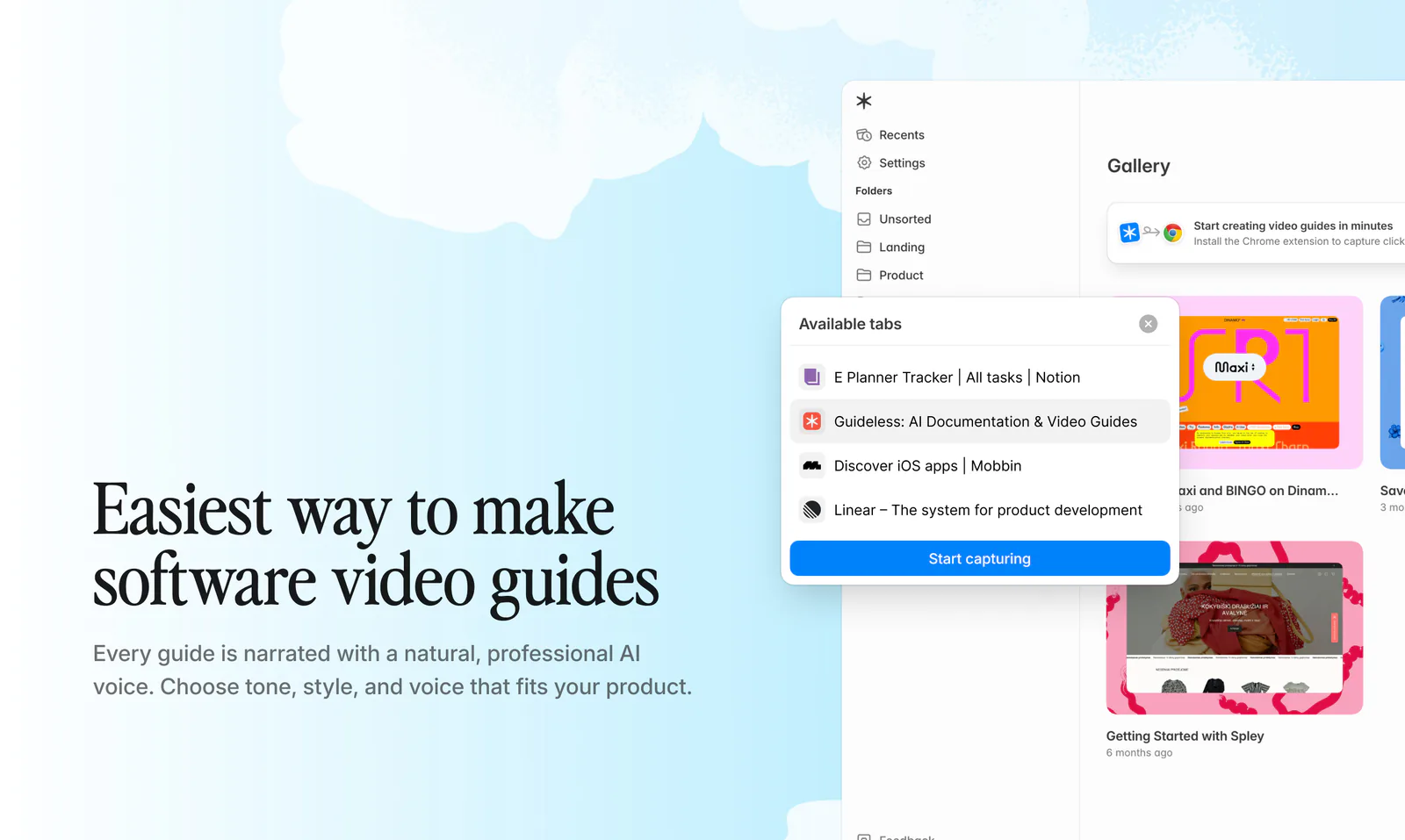
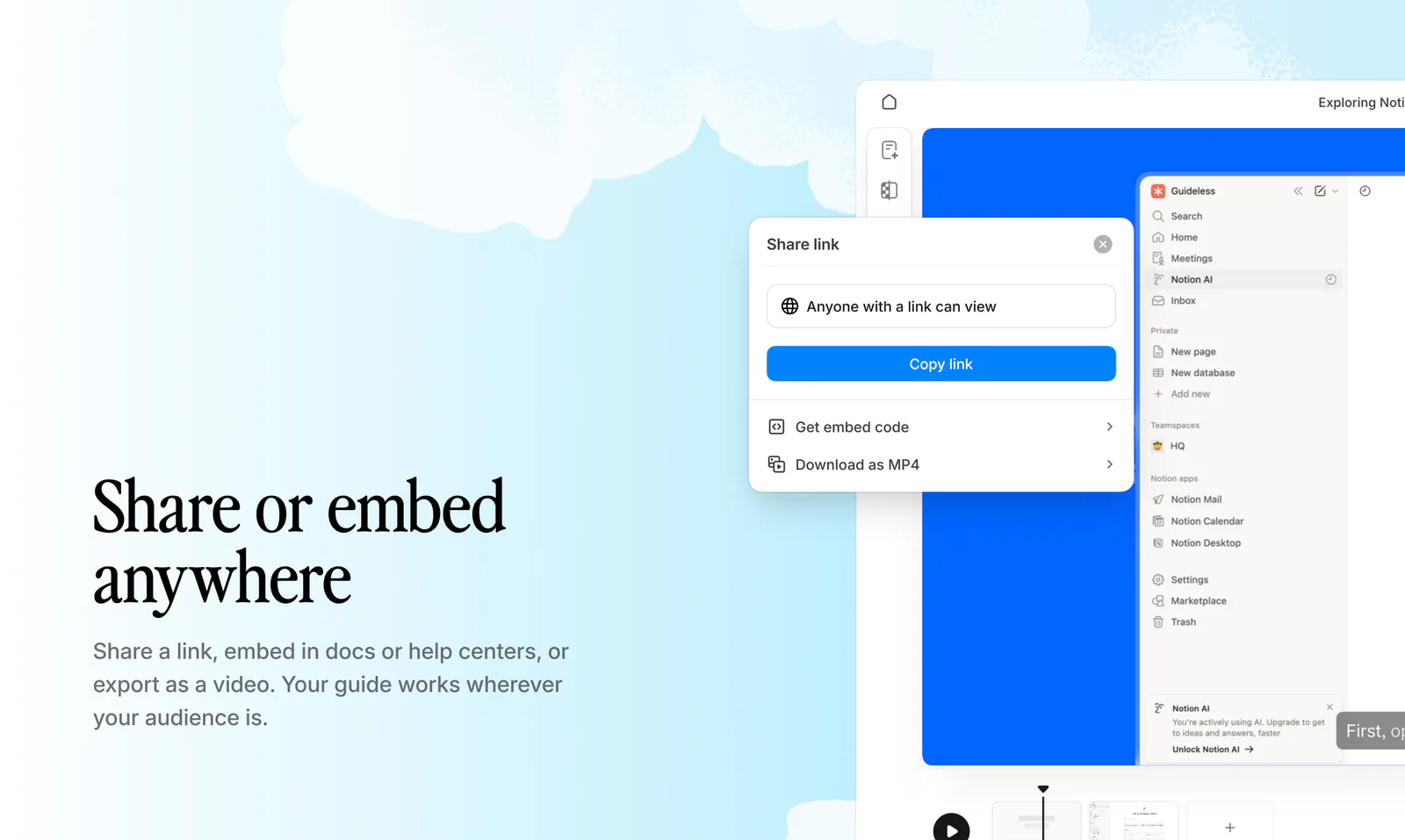
So, when your software changes, you can update only the steps that changed instead of creating the whole guide again. Guides can be shared by link, embedded in a help center or knowledge base, or exported as a PDF or MP4 video.
Keep the templates above for processes that happen outside software, such as approvals and handoffs, and for one-page quick reference sheets. For software walkthroughs that change often, capturing the workflow and creating an AI-generated voiceover and text is quicker than writing it by hand. You can try it on the Guideless free plan.
Common mistakes when using a how-to guide template
- Creating a guide that covers more than one task. These guides get complex and confusing to work through. Split a longer process into guides for each individual task, then link the parts together.
- Using vague actions like “Configure the settings”. These leave the reader guessing, so be as specific as possible, e.g., “Set Time zone to UTC+2 and click Save”.
- Forgetting to include a “what you should see” line. Without this, your readers can’t tell whether a step worked until an error occurs later on.
- Filling in the “Last reviewed” field without giving the guide an owner. Make sure someone owns the review and checks the guide each time the process or software changes.