
Loom works well for quick async messages, but it wasn't built for documentation. When teams try to create structured training guides or onboarding content with it, they run into limits: no step-by-step structure, slow updates, and little insight into where viewers get stuck.
The best alternatives aren't just screen recorders with more features. Some are built to turn workflows into clear, maintainable guides, and others are better video recorders or editors. This comparison covers 10 Loom alternatives, what to look for in each, and how to choose the right one for your use case.
Why teams replace Loom for documentation
The top Loom alternatives for documentation include Guideless for narrated video guides, Scribe for written SOPs, and Tango for screenshot-based walkthroughs. Each gives you more structure and easier updates than a raw screen recording.
Teams don't leave Loom because it's a bad tool. They leave because a library of reusable training content needs things a quick-message recorder wasn't designed for.
Free plan limits restrict documentation at scale
Loom's free Starter plan allows up to 25 videos per person and 5-minute recordings. That's fine for quick updates, but a library of onboarding guides, support content, and training materials outgrows it quickly. Upgrading removes the limits, but not the format issues below.
Raw videos are not structured documentation
Structured documentation means step-by-step guides with clear sections, captions, and visual highlights. Format matters: according to Wistia data cited by HubSpot, how-to videos of 3 to 5 minutes see 74% engagement, compared with 43% for other videos of the same length.
A Loom recording is one continuous video. Viewers can't jump to step four or scan the content first, so they end up scrubbing through the whole recording. If you're building guides from scratch, here is how to create how-to guides people actually follow.
Updates usually mean recording again
When a product interface changes, the affected part of a Loom video is out of date, and fixing it usually means recording again. Teams often let documentation go stale rather than re-record, and outdated guides confuse the people they were meant to help.
Voiceover depends on the person recording
Loom transcribes videos in 50+ languages and adds captions, but the voice is always the presenter's. A spoken walkthrough in another language means someone has to record it again in that language.
Analytics stop at the video level
Loom shows who watched and, on paid plans, engagement insights. What it can't show is which step of a process confuses viewers, because there are no steps, only one video.
What to look for in a Loom alternative for documentation
Before comparing tools, it helps to know what separates documentation tools from general video recorders.
Structured output instead of one long recording
Documentation tools produce step-by-step guides rather than continuous video files. Look for:
- Captions: text that reinforces what happens on screen
- Visual highlights: zoom, click indicators, or annotations
- Clear steps: sections viewers can navigate on their own
Updates without re-recording
Being able to edit a script, swap a step, or update one section without recreating the whole guide saves the most time over the life of your documentation. Interfaces change often, and documentation that can't keep up becomes a liability.
AI narration and scripting
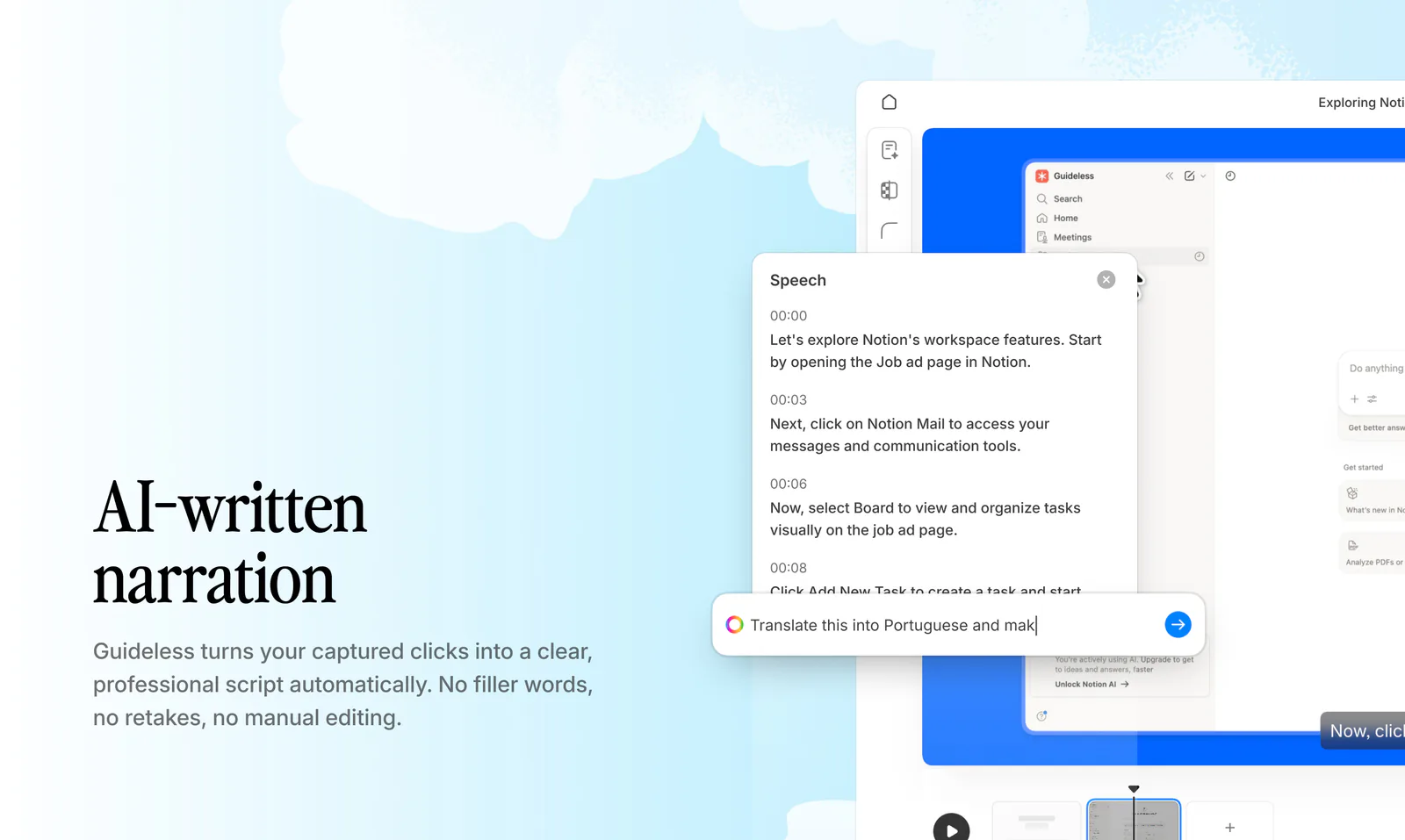
AI scripting writes the explanation for each captured step, and AI narration turns that text into voiceover. Together they remove the need to record your own voice and keep quality consistent no matter who creates the guide.
Voiceover in multiple languages
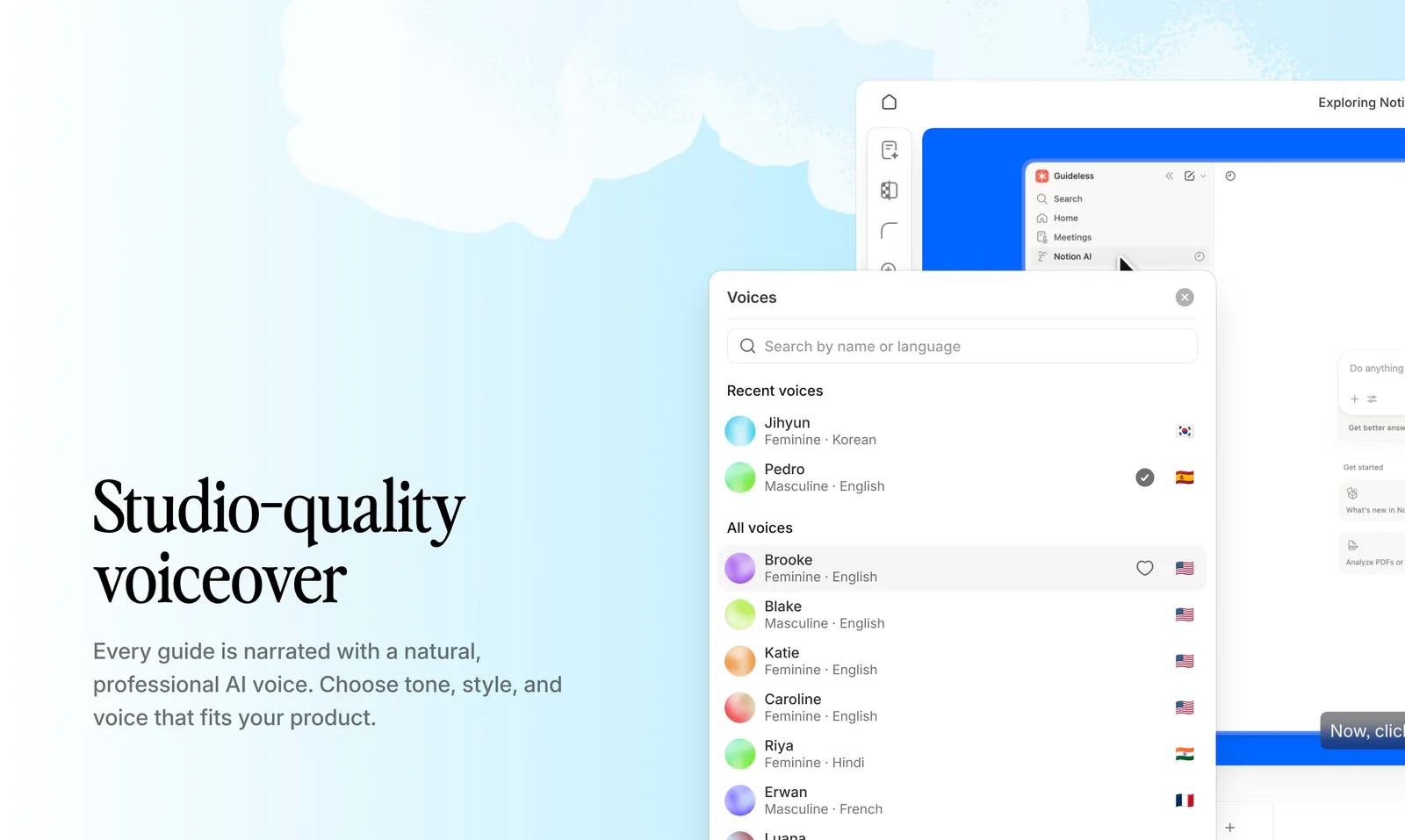
If you train customers or employees in more than one language, AI voiceover lets you produce each language version from the same capture instead of recording it again.
Embedding and sharing options
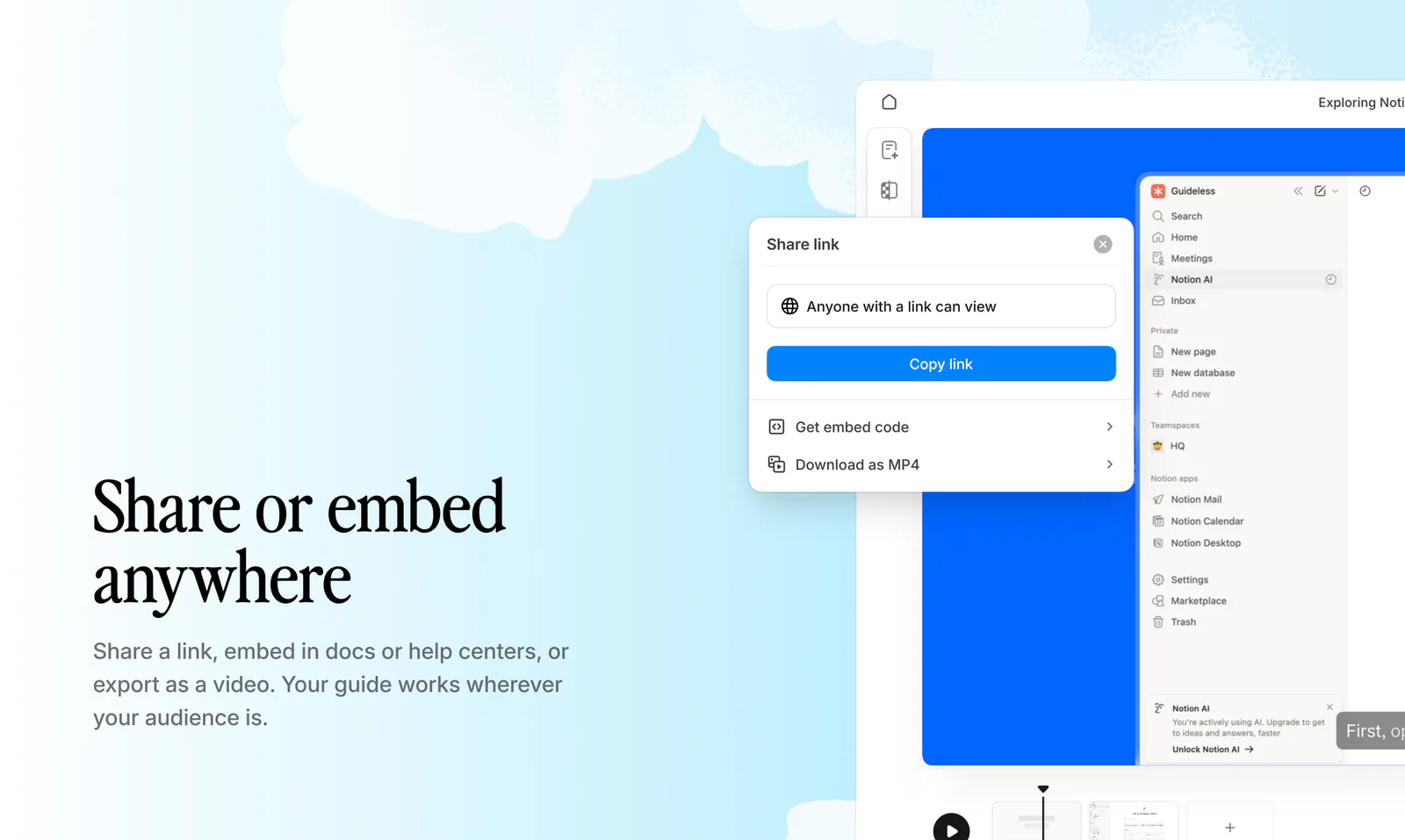
Look for direct links for quick sharing, embeds for Notion, Confluence, or help centers, and MP4 export for offline use or an LMS. Embedding matters most for customer education, where guides need to sit where customers look for help.
Analytics for documentation engagement
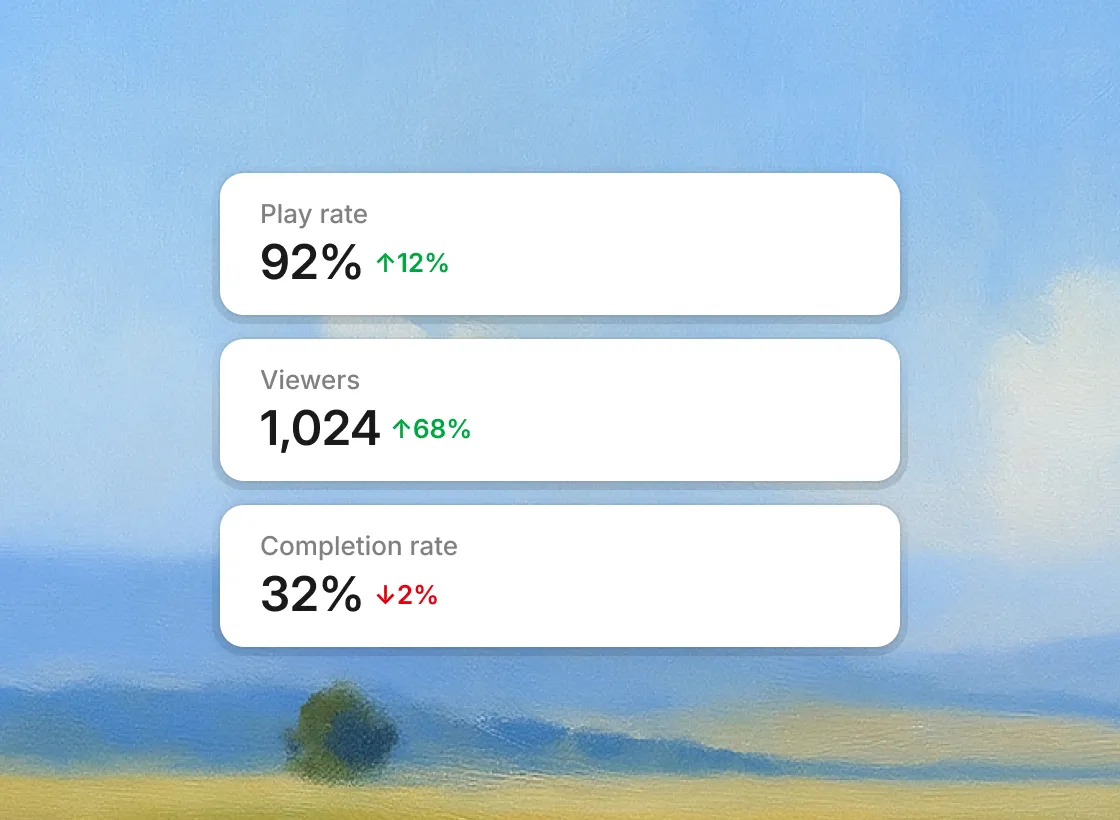
Useful analytics show views, drop-off, and engagement per guide. That tells you which guides are unclear and which ones to update first.
Pricing as your library grows
Most tools charge per creator or per user, and a few meter video hours. Check how costs scale as your content library and team grow, not just the starting price.
Loom alternatives at a glance
Pricing is taken from each vendor's pricing page as of October 2026. "Annual" means billed annually.
| Tool | Best for | Output | AI features | Free plan | Starting price |
|---|---|---|---|---|---|
| Guideless | Narrated video guides from real workflows | Video guides, step-by-step guides, PDF, MP4 | AI script and voiceover (42+ languages) | Yes (3 guides) | $29/creator/mo, annual |
| Guidde | AI video documentation | Video guides | AI script and voiceover (50+ languages) | Yes | $19/creator/mo, annual |
| Scribe | Written SOPs | Step-by-step guides, video share | AI capture and workflow improvements | Yes | $25/seat/mo, annual |
| Tango | Internal how-to guides | Step-by-step guides, on-screen guidance | AI content (paid plans) | Yes (5 shared workflows) | $15/user/mo, annual (3+ users) |
| Glitter AI | SOPs from recordings | SOP docs, guides, video | AI SOP generator | Yes (3 guides) | $249/mo for 3 creators, annual |
| Descript | Edited, polished videos | Edited video | Text-based editing, AI tools | Yes | $16/person/mo, annual |
| Camtasia | Detailed tutorial videos | Edited video | AI editing tools | Free editor (watermarked exports) | Paid plans, see vendor |
| ScreenPal | Simple recording and editing | Recorded and edited video | AI captions, transcripts, chapters | Yes | Paid plans, see vendor |
| Vidyard | Sales videos | Video messages | AI videos | Yes (5 videos/mo) | Paid plans, see vendor |
| ClickUp Clips | Quick recordings inside ClickUp | Video clips | AI transcript | Part of ClickUp | ClickUp plans |
Top 10 Loom alternatives for documentation and training
1. Guideless
Guideless turns real software workflows into narrated video guides, step-by-step guides, and PDFs. You capture a process by clicking through it in your browser, and Guideless writes the script, adds AI voiceover, and builds a guide with captions and highlighted steps.
- Best for: teams that want narrated training and onboarding guides without recording their own voice
- Key features: click-by-click capture, AI-written narration, AI voiceover in 42+ languages, update only the steps that changed, share by link or embed, MP4 and PDF export, guide analytics
- Pricing: free plan with up to 3 guides; Pro from $29 per creator per month billed annually
- Limitations: captures browser-based workflows through a Chrome extension; it doesn't record your camera for personal video messages
Here is an example guide created with Guideless:
For a side-by-side look, read the Guideless vs Loom comparison.
2. Guidde
Guidde creates narrated video walkthroughs from captured workflows, with AI-generated scripts and voiceover.
- Best for: teams that want video how-to guides with AI voiceover
- Key features: workflow capture, AI voiceover in 50+ languages, branded templates, embeddable player
- Pricing: free plan; Pro from $19 per creator per month billed annually
- Limitations: video-first, so teams that also need written step-by-step guides may need a second tool
See our Guidde comparison for the differences.
3. Scribe
Scribe captures your clicks and generates written step-by-step guides with annotated screenshots. Guides can also be shared as a video.
- Best for: teams that prefer text-based SOPs over video
- Key features: automatic capture, annotated screenshots, sharing and embedding
- Pricing: free plan; Pro Personal from $25 per seat per month billed annually
- Limitations: no narrated walkthroughs, which makes complex workflows harder to follow
Read how Guideless compares as a Scribe alternative with narrated video.
4. Tango
Tango captures workflows and turns them into screenshot-based guides. Paid plans add on-screen guidance for workspace members.
- Best for: quick internal SOPs
- Key features: browser extension capture, branching, PDF/HTML/Markdown export, on-screen guidance (paid)
- Pricing: free plan with 5 shared workflows; Pro from $15 per user per month billed annually for teams of 3+
- Limitations: no AI voiceover; video embeds and AI content need a paid plan
See the Tango alternative breakdown for details.
5. Glitter AI
Glitter AI turns screen recordings into SOPs and step-by-step guides with screenshots, which you can export to PDF, Word, or Markdown.
- Best for: operations teams documenting processes as written SOPs
- Key features: SOP generator, guide editor, video capture or upload, document export
- Pricing: free plan with 3 guides; Growth from $249 per month for 3 creators billed annually
- Limitations: paid plans are priced for teams, and video is metered in monthly hours
For more tools in this category, see our guide to process documentation software.
6. Descript
Descript is a video and audio editor where you edit the video by editing its transcript.
- Best for: teams producing polished, edited training or marketing videos
- Key features: screen recording, text-based editing, transcription, AI voice tools
- Pricing: free plan; paid plans from $16 per person per month billed annually
- Limitations: an editing tool, not a documentation tool, so every guide is still produced by hand
7. Camtasia
Camtasia combines screen recording with a full video editor for Windows and macOS, popular with instructional designers.
- Best for: detailed tutorial videos with callouts and animations
- Key features: screen recording, timeline editor, annotations, AI editing tools
- Pricing: the editor is free to download, with watermarked exports until you upgrade to a paid plan
- Limitations: a desktop editor with a learning curve; updating a tutorial means editing the video again
8. ScreenPal
ScreenPal is a screen recorder and video editor that works across desktop, mobile, and Chromebook.
- Best for: educators and small training teams on a budget
- Key features: screen and webcam recording, trimming and overlays, AI captions, transcripts, and chapters
- Pricing: free to start; paid business plans available
- Limitations: manual recording and editing, no AI voiceover
9. Vidyard
Vidyard focuses on video for sales teams, with personalized videos and viewer analytics.
- Best for: sales teams sending video to prospects
- Key features: screen and webcam recording, personalized video, AI videos, sales analytics
- Pricing: free plan with 5 videos per month up to 30 minutes each; paid plans available
- Limitations: built for sales outreach, not for documentation or training libraries
10. ClickUp Clips
ClickUp Clips is screen recording built into ClickUp, with AI-generated transcripts. Recordings live alongside your tasks and docs.
- Best for: teams already working in ClickUp who want quick recordings
- Key features: screen recording, timestamped AI transcripts, sharing inside ClickUp
- Pricing: part of ClickUp plans
- Limitations: basic recordings with no structured guide output
Free Loom alternatives
Most tools on this list have a free plan, but the limits differ:
- Guideless: up to 3 narrated guides, with AI voiceover included
- Tango: 5 shared workflows and up to 10 users
- Glitter AI: 3 guides up to 5 minutes each
- Vidyard: 5 videos per month, up to 30 minutes each
- Camtasia: full editor, but exports are watermarked
- Guidde, Scribe, Descript, ScreenPal: free plans with feature limits
How to choose the right alternative to Loom
For customer onboarding
Customer onboarding needs guides that can be embedded in a help center, voiceover in your customers' languages, and engagement tracking. In a Zendesk research, 91% of customers said they would use a knowledge base if it met their needs. Guideless fits here because guides embed where customers look for help. See how teams create customer onboarding videos.
For employee training
Internal training works best with tools that embed in wikis like Notion or Confluence and are easy to update, since internal processes change often. Read how Guideless supports employee onboarding, or our guide on how to make a training video.
For support documentation
Support teams benefit from turning repeated questions into reusable guides that live in the help center. Quick creation and embedding reduce the time spent answering the same questions. Here is how to build knowledge base videos that are easy to keep current.
For product walkthroughs
Customer-facing walkthroughs need polished, branded output. Look for branding controls for colors, logos, and backgrounds, and see how to create product walkthroughs from real product flows.
How to switch from Loom to a documentation tool
1. Export your existing Loom videos
Download the Loom videos you want to keep as MP4 files. Transcripts can help when you recreate guides in a new tool.
2. Audit what you have
Review which videos are still accurate and which are outdated. Prioritize the guides with the most views.
3. Set up the new tool
Create a workspace, set up branding, and invite your team. Most documentation tools take minutes to set up.
4. Recreate priority guides first
Start with the most-used guides. With an AI documentation tool, recreating a guide often takes less time than the original recording did, because the script and voiceover are generated for you.
5. Replace links and embeds
Swap embedded Loom videos in your docs and help center for the new guides, so viewers land on current content.
Choosing your Loom alternative
If you need quick video messages, Loom is still a good fit. If you need a library of training and onboarding guides that stays accurate, pick a tool built for documentation: written SOPs (Scribe, Tango, Glitter AI), edited video (Descript, Camtasia), or narrated video guides (Guideless, Guidde).
To see what a narrated guide looks like for your own workflows, capture one process with Guideless. Get started for free.